Verifying & Updating Occupant Assignments by Building
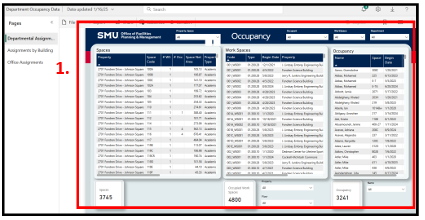
Open the Department Occupancy Data
PowerBI dashboard using the link provided
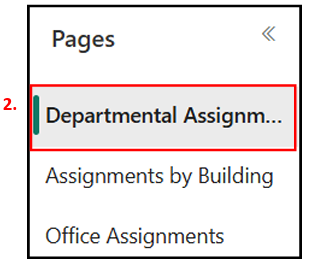
On the left-hand navigation pane, select the
Departmental Assignment tab.
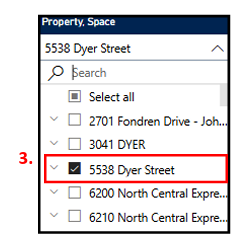
Under the Property.Space drop down menu,
select the Property you want to view
occupant data.
When a property is selected, the Workspaces and
Occupancy columns update to show the occupant
data for that Property. Review the data as needed.
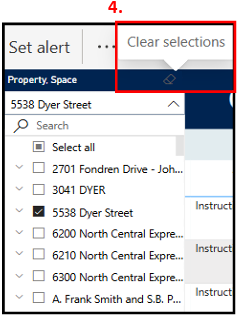
To clear the Property selection, hover your
mouse over the top right corner of the
Property.Space drop-down and select “Clear
Selections”.
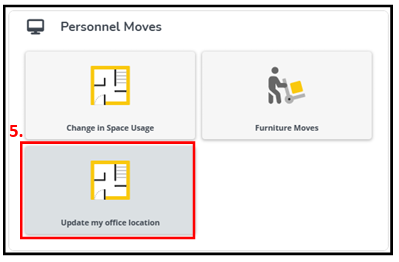
If you need to make changes/updates to
occupant assignments, open STABLE home
page and select “Update my Office Location”
icon under Personnel Moves.
Fill out the data on the “Update my Office
Location” request, and select Submit.
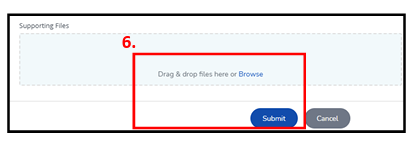
If you have a file (Excel, Word) with several
changes to make at once, select “Browse” under
Supporting Files section and upload your fire.
SMU's singular approach to integrating rigorous learning with hands-on experience will prepare you to achieve your educational goals and expand your world in ways you never imagined. Ours is a community of people forging their own paths. We'd like to
help you shape yours.